Timesheet approvals
A manager reviews each timesheet before it can be billed.
Plan who is working on which project and for how many hours, see how much of each person’s capacity is used, and find who has time for the next piece of work.
The resource planner shows each person’s project bookings across the month, with their capacity used. Switch the view to look at a single day, this week, this month, a run of weeks or several months at once.
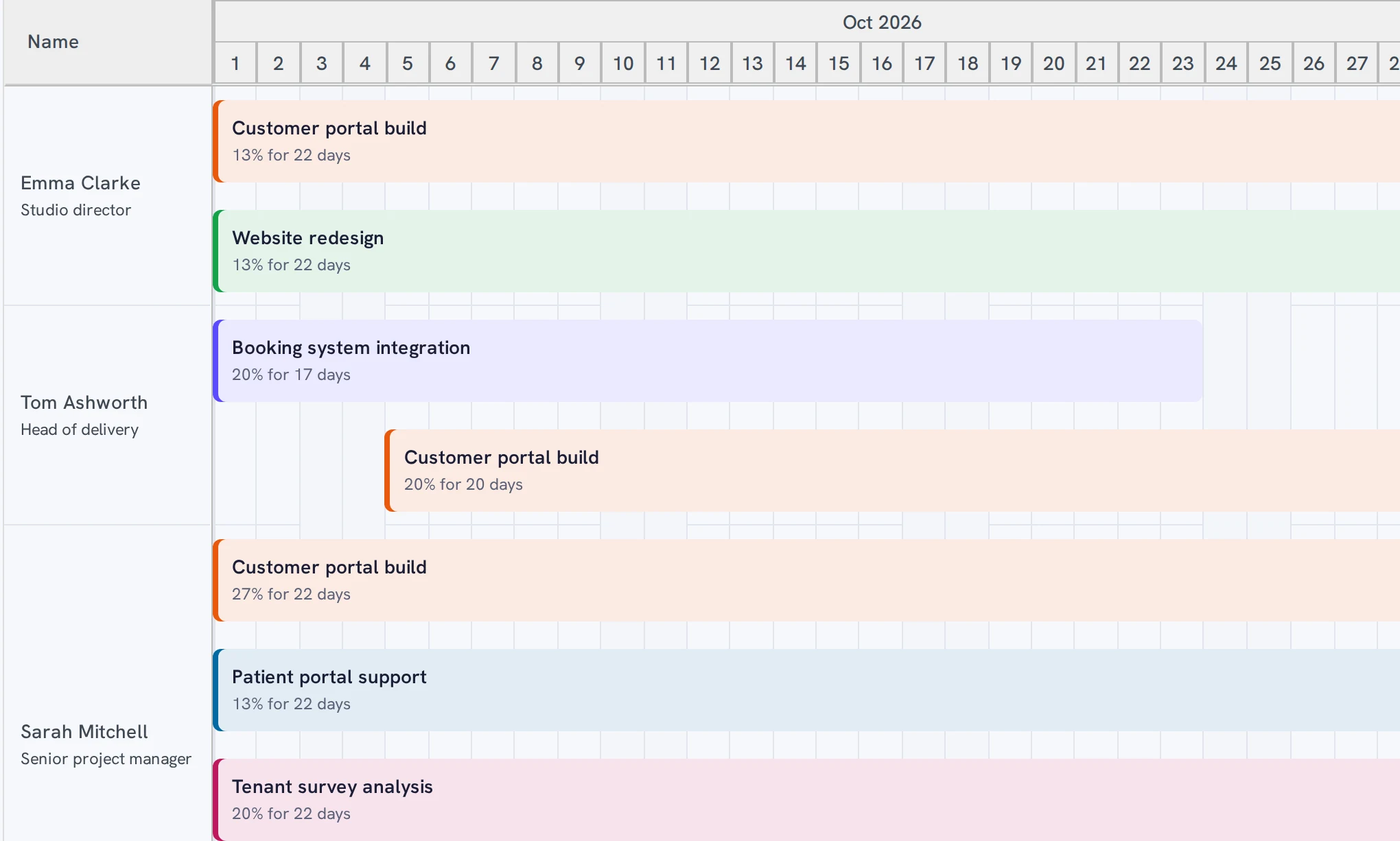
Plan who is working on which project, and for how many hours. Each booking shows how much of a person’s day it takes, such as “100% for 4 days”, and the planner compares what is planned with each person’s capacity, so you can see who is booked, who is over and who has room.
Approved leave appears in the planner alongside project bookings, so a week that looks free is not a week someone is away.
The capacity finder answers “who can take this on?”. Pick a period (this week, next week, this month, next month or your own dates), then a level of booking: nobody booked (0%), under capacity, fully booked (100%), over capacity, or a custom percentage such as “less than 50%”. The planner narrows to the people who match.
The planner earns its place at the moments when a decision depends on who is free:
Planning sits beside the hours people actually log. Time, leave and utilisation reports use the same data, so you enter things once and the numbers agree wherever you look. See reports and dashboards.
A manager reviews each timesheet before it can be billed.
Policies, requests and approvals, including half days.
Time by project, task and person, and the utilisation of your team.
Each person’s project bookings across the month, with their capacity used, and approved leave alongside.
Use the capacity finder. Choose a period and a level of booking, such as under capacity or less than 50%, and the planner narrows to the people who match.
Yes. Approved leave appears alongside project bookings.
Yes. The 15-day free trial includes every feature, for your whole team (up to 100 users), with no card needed. See pricing.